


EZ Preorder guide
How to take preorder deposits on Shopify with EZ Preorder
EZ Preorder can take a deposit on preorder products at checkout and charge the rest automatically to the customer’s payment method on a date you choose. You need the Professional plan or higher, a checkout on Checkout Extensibility, and customers paying with Shopify Payments or PayPal Express. Once switched on, deposits apply to all of your preorder products.
Before you start
- Plan: Professional or Scale. Compare plans.
- Checkout: Checkout Extensibility. Stores still on checkout.liquid need to upgrade first.
- Payment providers: Shopify Payments or PayPal Express. Local and other payment methods do not work with deposits.
- Where you sell: your online store. Deposits do not work with draft orders, Shopify POS or Buy X get Y discounts.
- Preorders set up: the products need an active preorder rule. See how to accept preorders.
Step by step
-
Step 1: Check the requirements
Go through the list above before a launch. Customers who pay with a method other than Shopify Payments or PayPal Express cannot use a deposit, so it is worth knowing which providers your buyers use.
-
Step 2: Put the launch product on preorder
For a product that has not been released, the Always rule keeps it on preorder whatever your stock level. To cap the number you sell, use Specific inventory level and set the inventory to the number of units you will have.
-
Step 3: Open the partial payments settings
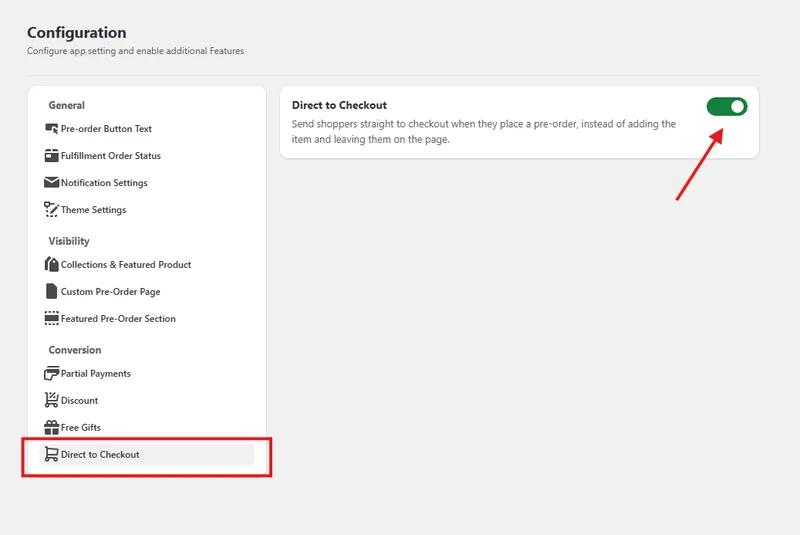
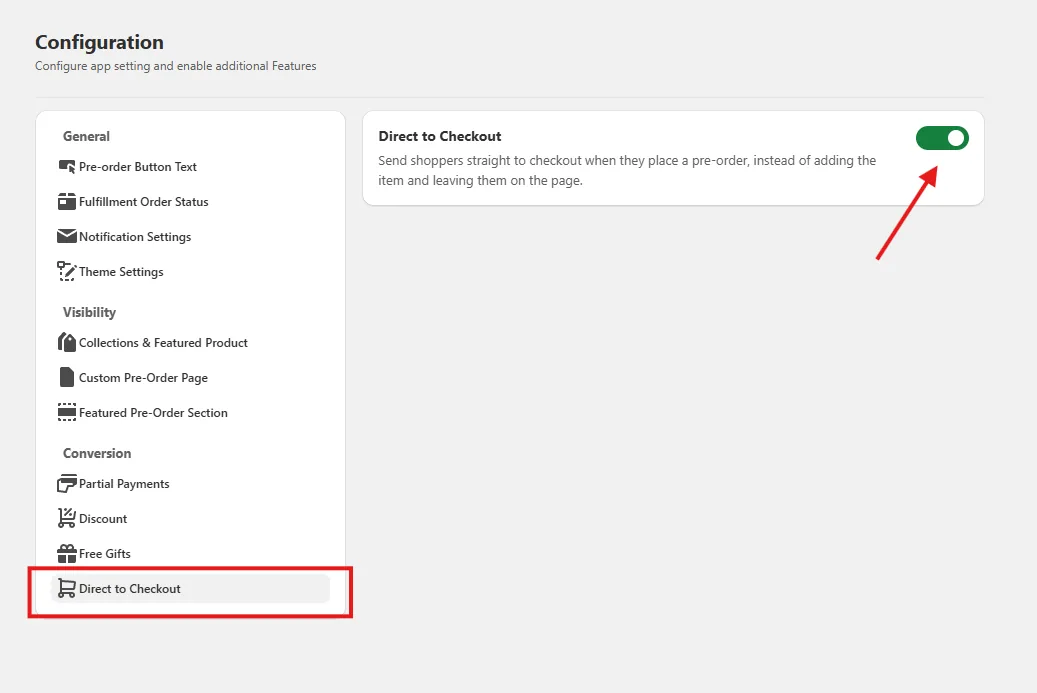
In the app, go to Configuration, choose Partial Payments under Conversion, and click Configure.
 (open full size)
Partial Payments sits under Conversion on the Configuration page. -
Step 4: Set the deposit
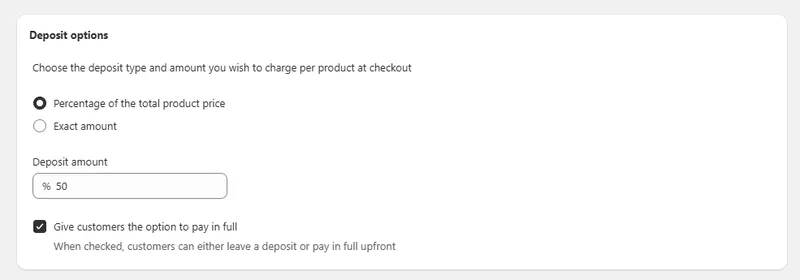
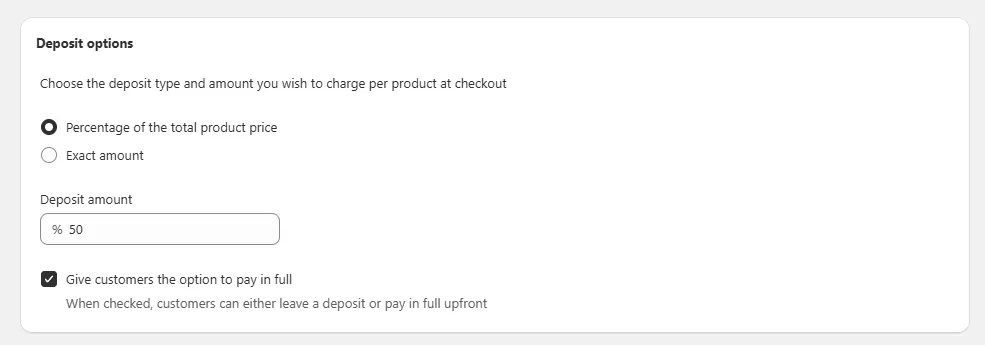
Choose Percentage of the total product price or Exact amount and enter the deposit. Keep Give customers the option to pay in full ticked to let shoppers choose between a deposit and paying everything now, or untick it to make the deposit the only option.
 (open full size)
A 50% deposit, with paying in full still offered. -
Step 5: Choose when the balance is charged
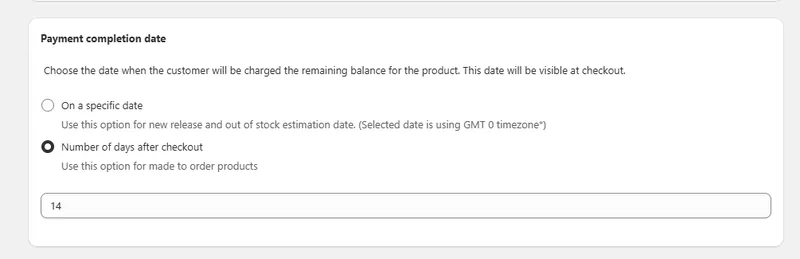
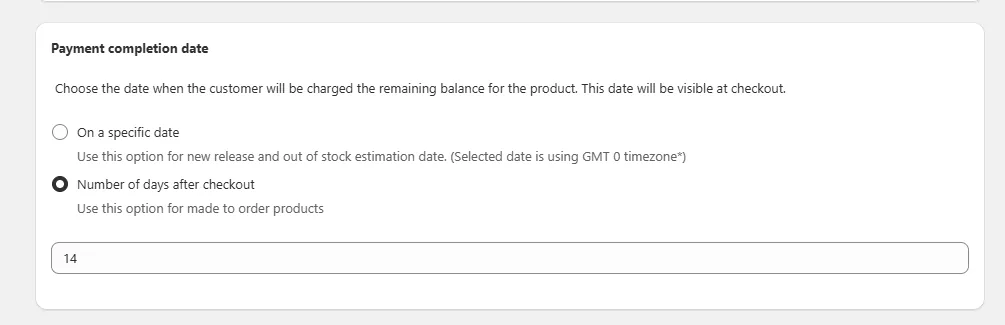
Under Payment completion date, choose On a specific date for a launch or a restock with a known arrival date, or Number of days after checkout for made-to-order products with a steady turnaround. A specific date is read in GMT 0 (UTC), so the charge can land a few hours earlier or later than midnight where you are. Customers see this date at checkout.
 (open full size)
The balance is charged automatically on this date. Here it is 14 days after checkout. -
Step 6: Check the labels and save
The same screen holds the storefront labels (Payment options, the deposit and pay in full choices, and a short explainer) along with their translations. Adjust them if you like, then click Save. Partial payments are now on for every preorder product in your store.
-
Step 7: Run through checkout
Open a preorder product, choose the deposit, add it to the cart and go to checkout. The cart and checkout show the item as a preorder paid by deposit, with the amount due today and the remaining amount due on the completion date.
What shoppers see
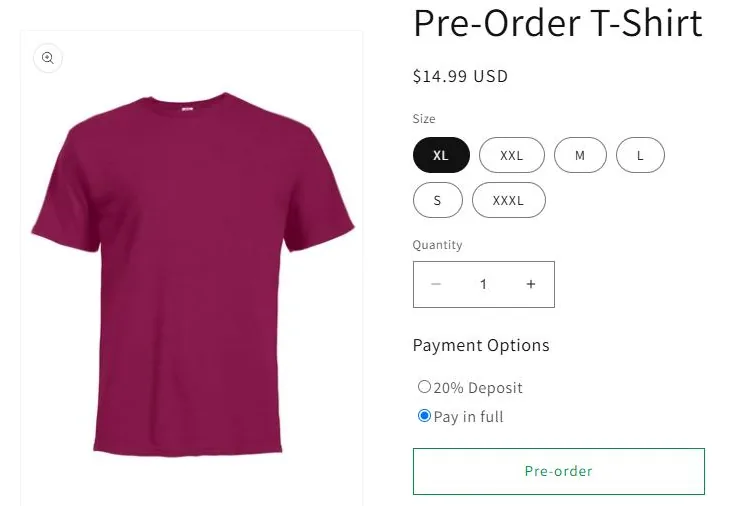
Shoppers see a Payment Options choice above the Pre-order button. Choosing the deposit shows a short line explaining that the rest is collected later, and checkout splits the total into what is due today and what is due on the completion date.
How the rest of the payment is collected
On the payment completion date, the app charges the remaining balance automatically to the payment method the customer used at checkout. With a specific date, every order is charged that day; with a number of days, each order is charged that many days after its own checkout. Customers see the due date and the amount at checkout.
If a balance charge fails, the app does not currently send a notification, so check your preorders after the completion date and contact any customer whose balance is still unpaid.
For every rule and limitation in one place, read the partial payments guide.
Watch the walkthrough
A short demo of partial payments from start to finish: the deposit settings, the payment completion date, the storefront labels, and a checkout where a $600 product is paid $300 today with $300 due 30 days later.
What the video covers
- 0:08Where partial payments are switched on, and why they apply to every preorder product
- 0:38Deposit options: a percentage or an exact amount, and the pay in full choice
- 1:25Payment completion date: a specific date (in GMT 0) or a number of days after checkout
- 2:35The storefront labels and their translations
- 2:48What shoppers see on the product page
- 3:43The deposit in the cart and at checkout, with the amount due today and the date the rest is due
Recorded in July 2024, when this setting lived under Settings. It is now under Configuration > Partial Payments.
Troubleshooting
- The deposit option does not show on a product
- Check that the product is an active preorder (its Pre-order button shows), that partial payments are switched on and saved, and that your store is on the Professional plan or higher.
- A customer cannot pay their deposit with their usual payment method
- Deposits only work with Shopify Payments and PayPal Express. Local and other payment methods are not supported for partial payments.
- A Buy X get Y discount is not applying
- Partial payments do not work with Buy X get Y discounts. Use a different discount type on preorder products.
- Adding to cart fails with "This variant can only be purchased with a selling plan"
- In your Shopify admin, open the product, find Purchase options and untick Only sell this product with these purchase options. The same fix applies to a "selling plan does not exist" error. If the error continues, email support.

Ready to set this up?
Install EZ Preorder from the Shopify App Store. There is a free plan, and you can follow this guide as soon as it is installed.