


EZ Preorder guide
How to add a Notify Me button and back in stock emails to Shopify
EZ Preorder adds a Notify me when available button to out of stock variants. Shoppers leave their email, and the app emails everyone on the list automatically as soon as that variant’s inventory is above 0 in Shopify. Alerts work per variant and are included on every plan, from Free (one restock alert product and your first 30 alerts) upward.
Before you start
- The EZ Preorder - Notify Me app block on every product template used by your restock products.
- On each restock product in Shopify: Track inventory on, and Continue selling when out of stock off.
- A plan with room for alerts. Each signup counts as one restock alert. Free covers one restock alert product and your first 30 restock alerts; paid plans include from 250 (Core) to 3,000 (Scale) per billing cycle. How limits work.
Step by step
-
Step 1: Add the Notify Me block to your product template
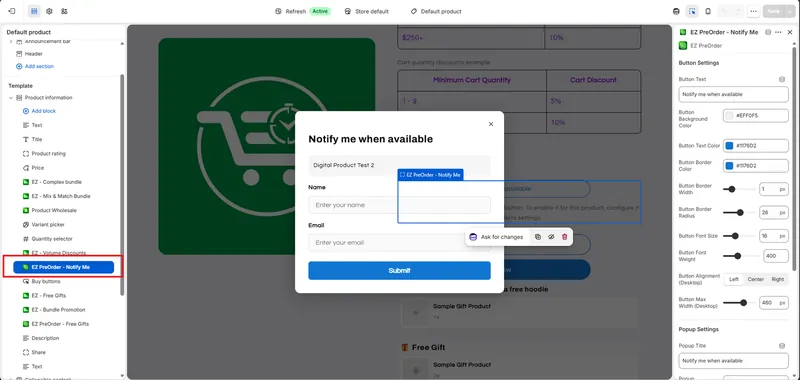
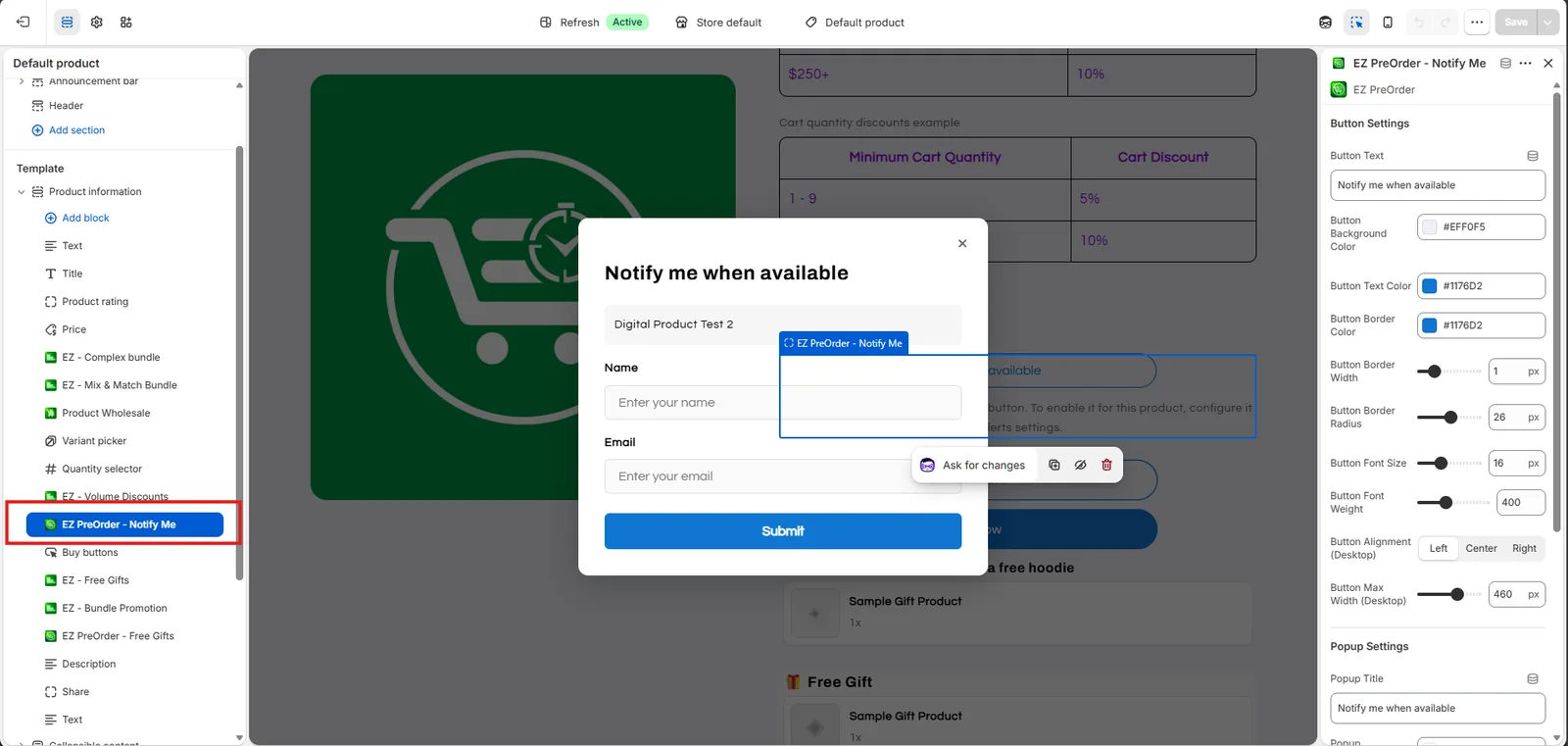
Open your theme editor, go to the product template and click Add block. Choose EZ Preorder - Notify Me and save. Repeat this for every product template that your restock products use. The block’s settings let you style the button (text, colors, border, size and alignment) and the popup title right in the theme editor.
 (open full size)
The Notify Me block in the theme editor, with its button and popup settings. -
Step 2: Add products to the restock list
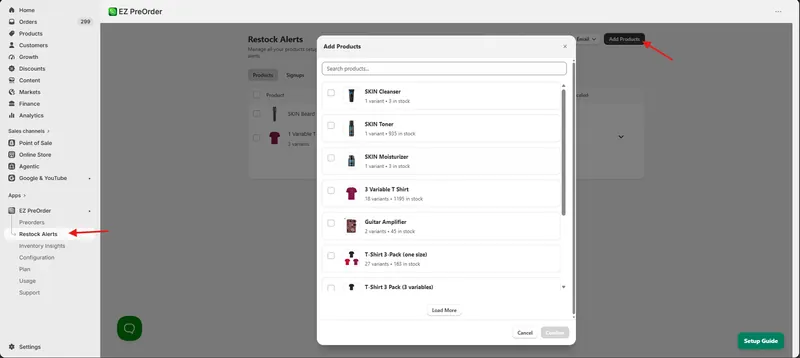
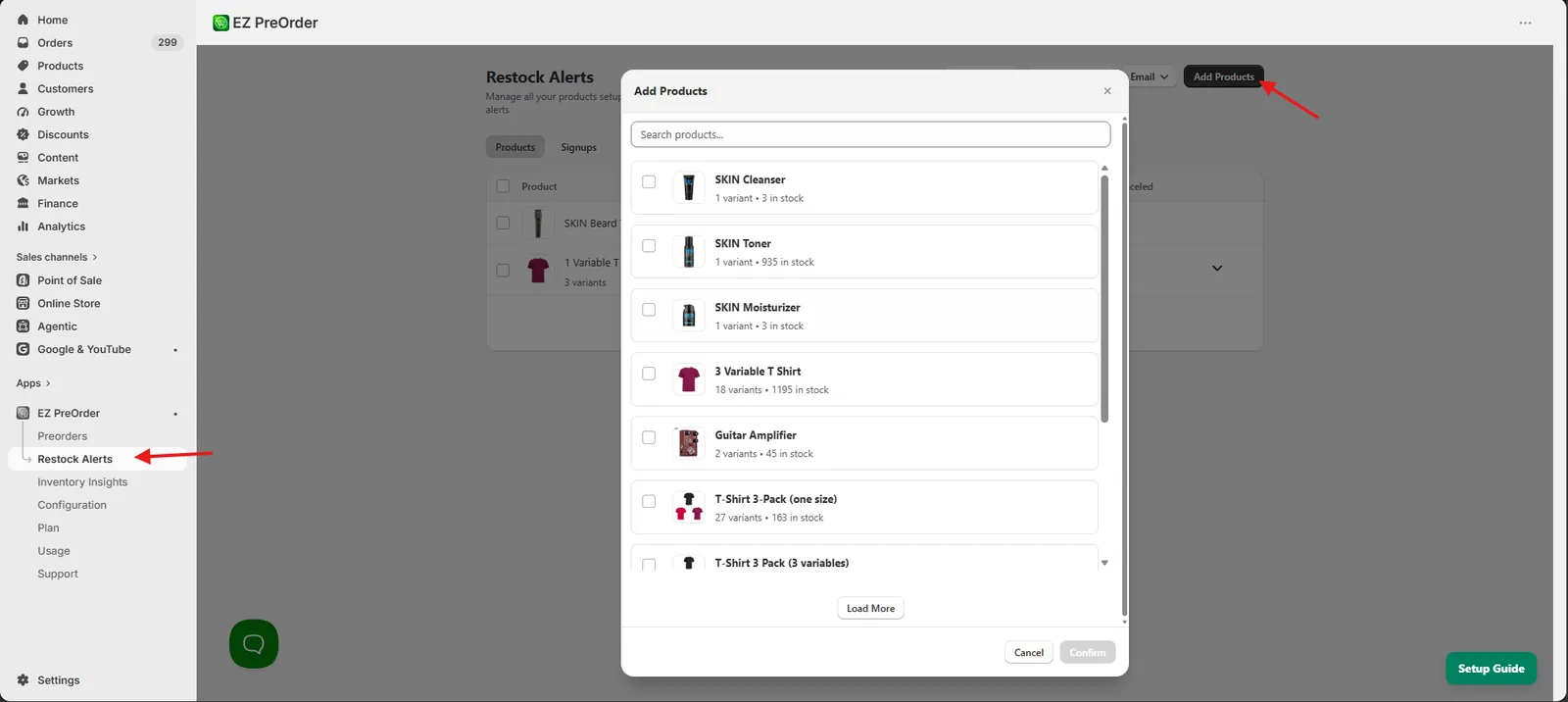
In the app, open Restock Alerts and click Add Products in the top right, then pick the products. To add many at once, use Bulk actions, which can add single products or whole collections.
 (open full size)
Adding products to the restock list. -
Step 3: Fix any product the app flags
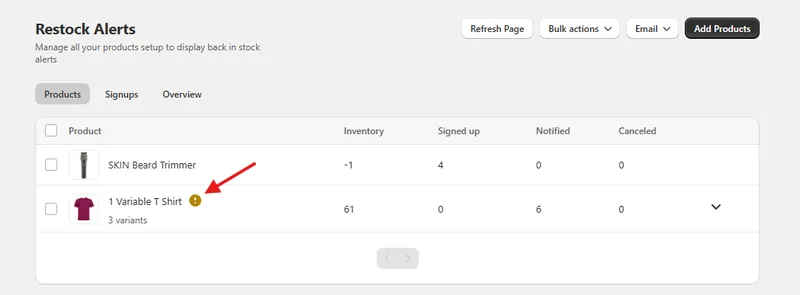
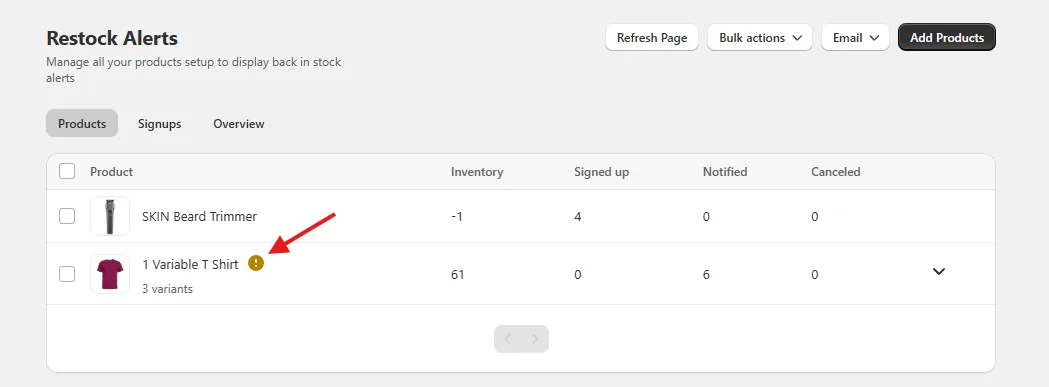
A warning icon next to a product means its settings will stop alerts from working. In Shopify, make sure Track inventory is on and Continue selling when out of stock is off for that product.
 (open full size)
The warning icon marks a product whose inventory settings need changing. -
Step 4: Customize the restock email
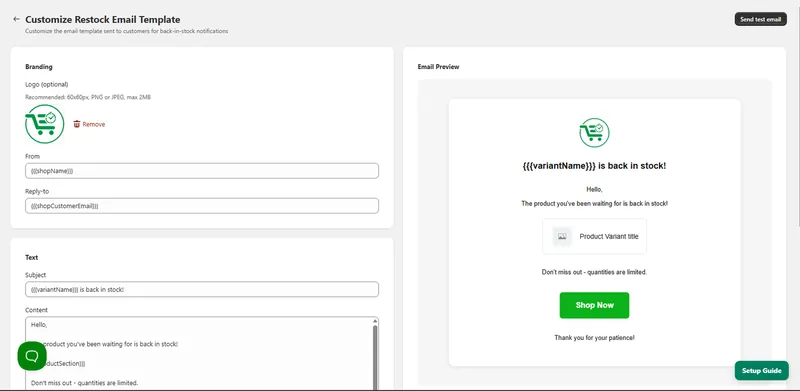
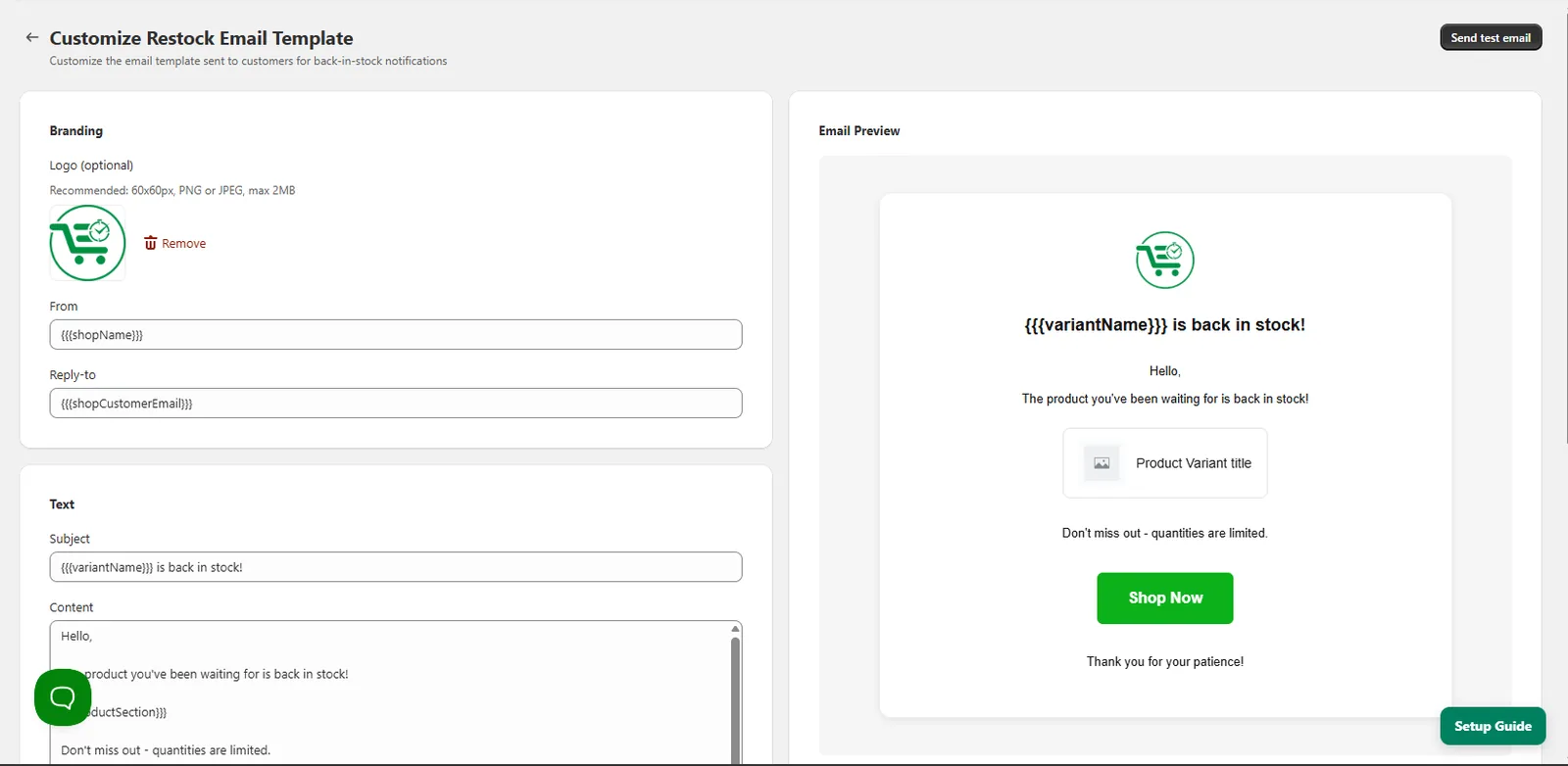
Go to Restock Alerts > Email > Customize. Edit the subject and text, add your logo, set the button to your brand color, and send yourself a test email before you go live.
 (open full size)
The restock email editor and its live preview. -
Step 5: Test it on your store
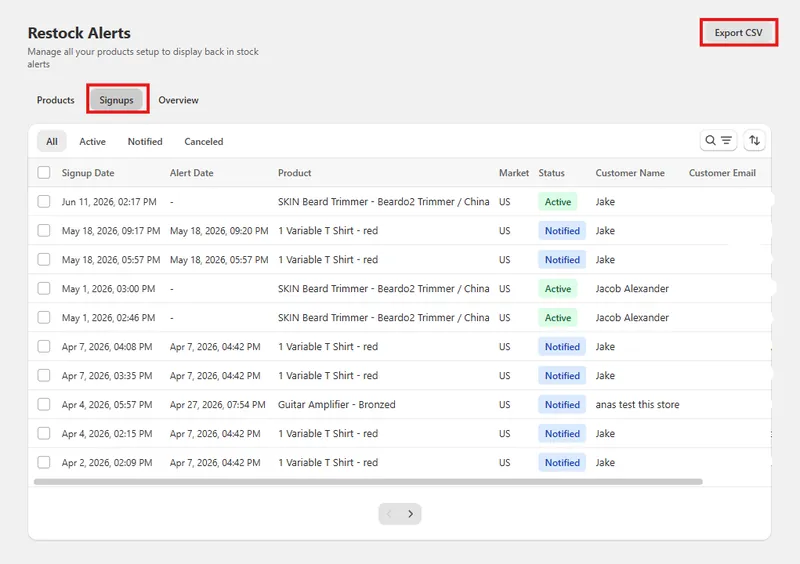
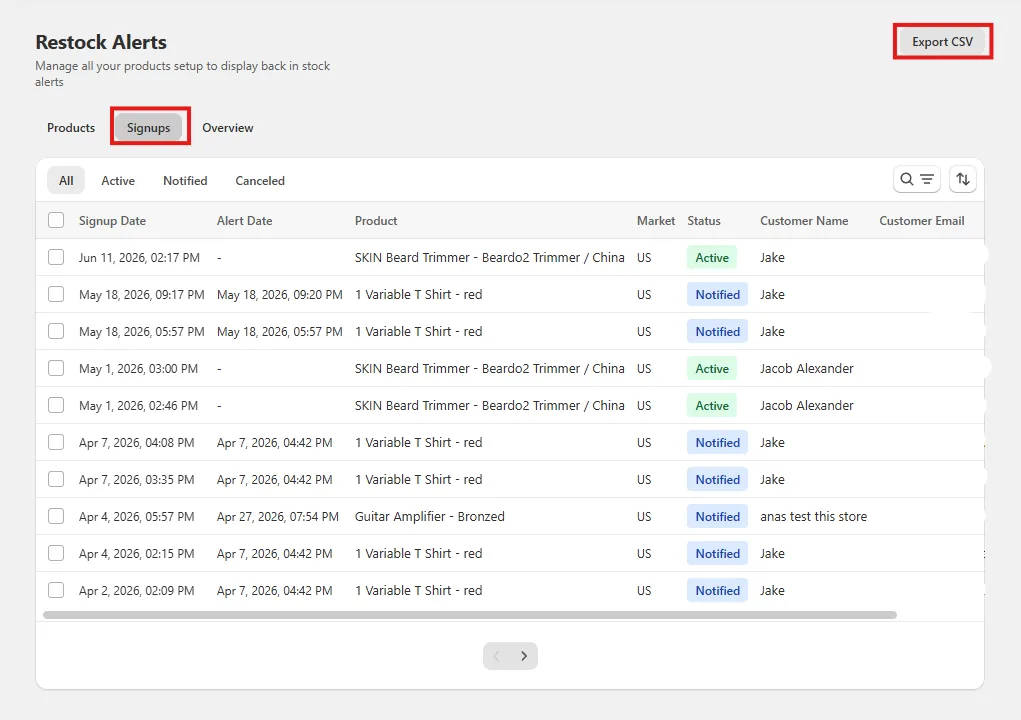
Open a product with an out of stock variant, select that variant and sign up with your own email. Then raise that variant’s inventory above 0 in Shopify. The app sends the alert automatically, and in Restock Alerts > Signups your signup changes from Active to Notified.
 (open full size)
Every signup, with when it was made, when the alert went out and its status. -
Step 6: Track the results
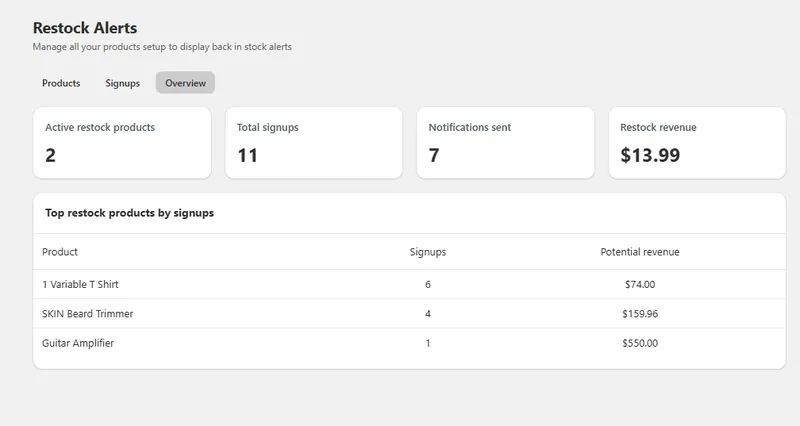
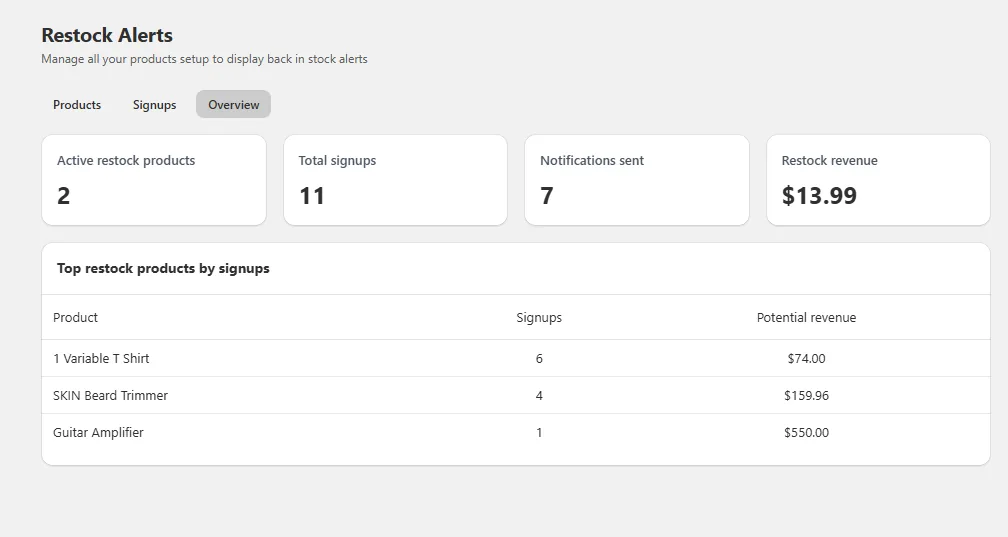
The Overview tab shows how many products have restock alerts on, total signups, notifications sent, revenue from restock alerts and your top products by signups. You can export every signup as a CSV from the Signups tab.
 (open full size)
The Overview tab: signups, alerts sent and the revenue they brought back.
What shoppers see
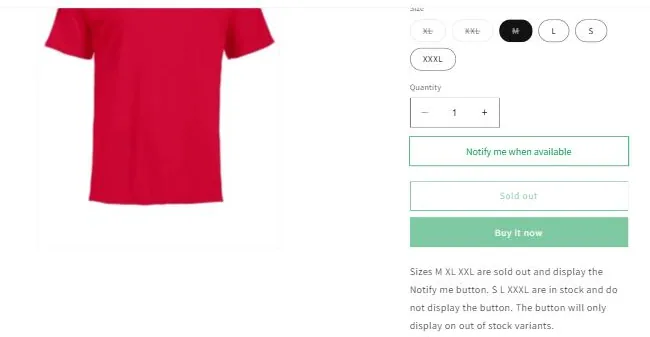
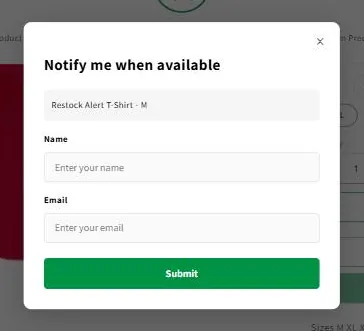
On a sold out variant, a Notify me when available button appears alongside your theme’s Sold out button. Variants in stock keep the normal Add to cart button. Clicking Notify me opens a short form with the product and variant already filled in.
When the restock email goes out
Alerts are sent automatically as soon as a variant’s inventory goes above 0 in Shopify, to everyone who signed up for that variant. Shoppers waiting on a different size or color are not emailed until their own variant is back in stock.
Troubleshooting
- The Notify me button does not show
- Check three things: the variant is out of stock (the button only shows on sold out variants), the product is on the restock list, and the EZ Preorder - Notify Me block is on the template that product uses. A product with a warning icon also needs Track inventory on and Continue selling when out of stock off. The button also stops showing once your plan’s restock alert allowance is used up, until you upgrade or the allowance resets.
- A customer did not get their restock email
- Find them under Restock Alerts > Signups. If their status is still Active, the variant they signed up for has not gone above 0 inventory yet. Alerts are per variant, so restocking a different size does not trigger theirs.
- The button does not update when a shopper switches variant
- Some themes need a small snippet for variant switching. See the variant switching fix, or email support.

Ready to set this up?
Install EZ Preorder from the Shopify App Store. There is a free plan, and you can follow this guide as soon as it is installed.